Remote computer monitoring and Windows updates for small business
Our remote computer monitoring watches every computer in your business, installs and checks Windows updates, and fixes common problems, without anyone on your staff doing it.
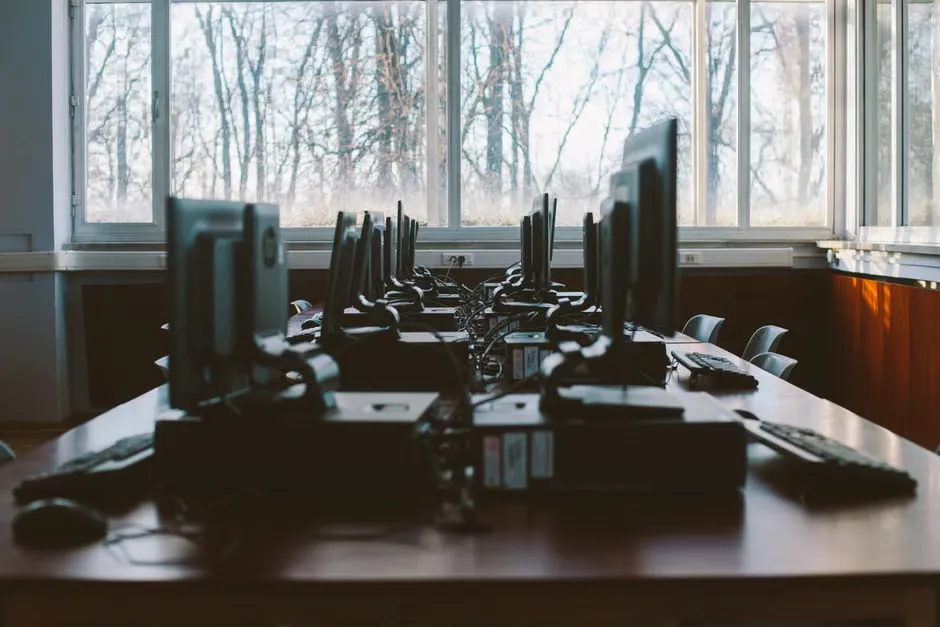
Updates fix known problems. Skipped ones leave them open.
Windows updates are how Microsoft fixes problems it already knows about. When they sit uninstalled, those problems stay on your computers.
Some updates fix bugs that make programs crash or slow a computer down. Others close security holes that are already public. Once a fix is published, the problem it fixes is no secret.
In most small offices, updates depend on each person clicking yes at the right moment. Some do. Some put it off for weeks. One laptop that is always closed at five o'clock can miss months of fixes.
IT people call this patch management. For a small business it means one thing: we install Windows updates on every computer, then check they actually went on. An update that failed quietly looks the same as one that worked, until something breaks.
When a version of Windows reaches the end of its support, it stops getting these fixes at all. Seeing which version each computer runs helps you plan for that before it becomes urgent.


Monitoring every computer
Our agent sits on each computer and reports its health to your portal. You see how every machine is doing without walking desk to desk or asking staff.
Windows updates installed and checked
We install Windows updates and then confirm they took, so known problems are fixed on every computer, not only the ones someone remembered to update.
Automatic fixes for common problems
When a common problem turns up, a ready-made fix runs on its own. Many small faults are sorted before anyone has to ask for help.
Installed programs list
A current list of what is installed on each computer. It helps you check licences, spot old software that should go and find programs nobody remembers adding.
Hard drive health
We check the health of each computer's hard drive, so a drive showing signs of wear can be dealt with before it stops working and takes files with it.
Computers gone quiet
If a computer stops checking in, it is flagged. You can find out whether it is switched off, offline or needs a closer look. More on alerts in our security checks.
From the first install to being told about problems
Getting a computer looked after follows the same four steps every time, whether it is your first computer or a new one you add later.
Discover: our agent goes on each computer
Once you sign up, our agent is installed on each computer you include. It is the small program that reports health, applies updates and runs fixes.
Design: the portal fills in by itself
You do not type in a list of machines. As each agent starts reporting, the computer appears in your portal with its health, its updates and its installed programs.
Deliver: updates installed, fixes run
Windows updates are installed and then checked on every computer. Automatic fixes run when common problems turn up, so small faults get sorted without a support request.
Support: you are told about problems
Problems show in your portal, including hard drive health and computers gone quiet. If you add text alerts, critical problems also reach you by text message.
Straight answers before you switch monitoring on
Frequently Asked Questions
- What does remote computer monitoring actually do?
- Our agent on each computer reports its health to your portal. From there we install and check Windows updates, run automatic fixes for common problems, keep an installed programs list, check hard drive health and flag computers that have gone quiet.
- Do my staff need to handle Windows updates?
- No. We install Windows updates on every computer and then check they were applied. Updates no longer depend on each person remembering to say yes.
- Will we know if a hard drive is wearing out?
- We check hard drive health on every computer and show it in your portal. A drive showing signs of wear can be dealt with before it stops working. Critical problems can also reach you by text if you add text alerts.
- Are text message alerts included?
- Text message alerts are an optional extra. If you add them, you get a text when a computer has a critical problem. Everything else shows in your portal either way. See the plans page for what each option includes.
- Can a computer be fixed without anyone coming in?
- Yes. With remote access, a technician can connect to a computer and fix it without a site visit. The service is delivered remotely, Australia wide.
- How is computer monitoring priced?
- Plans are sold per computer and billed monthly or annually. A one-off setup fee applies on monthly billing and is waived on annual billing. Current plans and amounts are on our pricing page.
- What happens when we add or remove computers?
- You change the number of computers as the business grows. When a new computer is added, our agent goes on it and it appears in your portal by itself.
- Does monitoring mean we are fully protected?
- No service can promise that. Monitoring and checked updates close known problems and show you what needs attention. Our security checks give each computer a score and show what is lowering it, so you know where you stand.
Know how every computer is doing, without chasing it.
Tell us how many computers you have and how they are looked after now. We will explain how monitoring and updates would work for your business.
Delivered remotely, Australia wide.